Fix a Slow WordPress Dashboard: Ultimate 2025 Speed Optimization Guide
Why Your WordPress Dashboard Feels Slow in 2025
It’s very annoying to log into your WordPress site and have to wait a few seconds (or even minutes) to get to the dashboard. You click on Posts, and it takes a while to load. It freezes for a second when you open Plugins.
This problem is more common than ever in 2025, but not because WordPress is bad. It’s because websites are now using more complicated scripts, bigger plugins, and heavier themes than they used to. When you add in automatic updates, AI-based tools, and too many hosting settings, your WordPress backend starts to feel like an old computer trying to run a new game.
The dashboard is the control center for your whole website, so listen up. When it’s slow, work slows down, edits take longer, and even uploading simple content can be a pain. What is good news? With a structured optimization approach you can fix it for good.
This guide is all about that.
We’ll go through each thing that slows down your admin panel one at a time, from how your server is set up to how messy your database is. There will also be a short case study from the real world and some practical changes that really make a difference.
And by the time you finish this guide, your WordPress dashboard won’t just be “a bit faster.” It will feel snappy, stable, and responsive, ready for the performance standards of 2025.
What Makes a WordPress Dashboard Slow
You need to know what’s holding you back before you can fix anything.
There isn’t just one thing that makes a dashboard slow. There are a lot of things that go into it, like having too many apps open on your laptop. Let’s take a closer look at the usual suspects:
1. Overloaded Hosting Environment
Shared hosting is still the main cause of slow backends in 2025. A lot of cheap hosts sell too many server resources, which means that your WordPress site shares CPU and RAM with hundreds of other sites.
If your admin loads slowly even when there isn’t much traffic, your hosting might be limiting how many PHP processes can run at once. If you switch to LiteSpeed, Cloud, or NVMe SSD hosting, your backend response time will get better right away.
Tip: Use tools like GTmetrix to check your TTFB (Time to First Byte) or PageSpeed Insights. If it’s more than 600ms, the problem is probably with your server.
2. Too Many or Heavy Plugins
It’s easy to go overboard with plugins, like SEO tools, page builders, analytics, security plugins, and backup tools. But every plugin adds more PHP scripts and queries to your admin.
In one case, 37 active plugins slowed their dashboard down to 12 seconds. Turning off plugins that aren’t being used cut load time by 70%.
Rule: Try to keep your active plugins to less than 20, and always delete any that you don’t use.
3. Database Bloat
WordPress databases grow without making a sound. Over time, revisions, transients, spam comments, and orphaned metadata build up.
In 2025, many bigger sites have databases that are more than 300MB, which is a lot more than what most blogs need. Use tools like WP Optimize or Advanced Database Cleaner to clean and optimize the database can make the backend run much faster.
4. Lots of activity on the High Heartbeat API
The WordPress Heartbeat API checks the server’s status every few seconds and saves posts automatically. It can be helpful, but it can also use a lot of CPU if you don’t limit it.
To make it happen less often, use a plugin like Heartbeat Control to change it from every 15 seconds to every 60 seconds.
5. Unoptimized Admin Area Scripts
Many modern themes and builders, such as Elementor, Divi, and Bricks, load extra scripts even when you’re in the admin area. These scripts are always trying to get more resources, which makes it take a long time to switch between pages.
You can turn off unnecessary admin scripts with lightweight tools or custom snippets (we’ll talk about that later).
Real Life Example: From 10 Seconds to 1.5 Seconds
This is what optimization looks like in the real world.
Last year, I helped a small eCommerce brand that used WooCommerce. Sometimes their WordPress dashboard took too long to load and timed out.
We found the following
- 42 active plugins, such as two security suites and several analytics tools
- Hosting on a basic shared plan
- WooCommerce transients not cleared for more than six months
- The database is 420MB big and has 1.5 million post revisions.
How to Fix It Step by Step:
- Moved the site to a LiteSpeed cloud host with NVMe storage
- Turned off extra plugins (from 42 to 19)
- Removed spam data, cleared transients, and optimized tables
- Set up a cache for objects on the server level (Redis)
- Limited activity on the Heartbeat API
- Dashboards that have already been loaded through caching
The result
Chrome DevTools showed that the dashboard load time went from 10 seconds to 1.5 seconds. The client saw an immediate rise in productivity and fewer PHP timeout errors.
👉 What do you think? Backend optimization isn’t about adding more plugins; it’s about cleaning up your site and making it a better place to be.
How to Fix a Slow Dashboard in 2025: A Step-by-Step Guide
Here is your full action plan, which has been updated for the latest version of WordPress.
We’ll start with simple fixes for users and then move on to more complex ones. Do this in the right order.
Step 1: Measure Your Current Admin Speed
Check the performance of your dashboard before making any changes.
Use
- Query Monitor plugin: shows which plugins or queries are making things slow down
- Check load time and bottlenecks in the Network tab of Chrome DevTools.
- In the Site Health go to Info tab, you can see the server specs, PHP version, and memory limit.
Write down your baseline, like “Dashboard loads in 8.3 seconds.” This helps you keep track of your real progress.
Step 2: Make sure everything is up to date (Core, Themes, and Plugins)
Slowdowns are common with old versions of WordPress or plugins. Updates in 2025 will make PHP run faster and the REST API work better.
✅ Open the Dashboard and go to Updates to make sure:
- WordPress version 6.7 or higher
- PHP version 8.2 or higher
- Database character set = utf8mb4
- Delete plugins that haven’t been updated in more than 12 months.
Step 3: Check and Cut Back on Plugins
Go to your Plugins page and think about this:
- Do I really use this every day?
- Can I use one plugin for two different things instead of two?
- Is this plugin only for the front end?
Turn off one at a time and check the speed after each change. You might find that 3 to 5 heavy ones are to blame for most of the lag.
Step 4: Raise the maximum execution time and memory limit for PHP
When WordPress runs out of memory, it slows down a lot, especially when it has to deal with big databases, bulk uploads, or plugin updates. In 2025, most shared hosts set the default PHP memory limit to 128MB or less, which isn’t enough for complicated setups.
How to Fix It:
There are three ways to fix it:
1. Change the wp-config.php file
- Use File Manager or FTP to open the root directory of your WordPress site.
- Put this line before the “That’s all, stop editing!” line. “Message:

- Save and upload again.
2. Use the Hosting Control Panel
- Look for PHP Configuration if your host uses cPanel or CyberPanel.
- Set memory_limit to 512M or more.
- Set max_execution_time to 300 seconds to make updates go more smoothly.
3. Ask Your Host
Some hosts don’t let you change memory. If that’s the case, call their support and ask for more memory.
💡 Pro Tip: Go to Tools > Site Health > Info and use the Site Health tool to make sure your new memory limit is working.
When I did this for a client who used WooCommerce and Elementor Pro, the “Products” and “Media Library” sections of their dashboard started loading three times faster right away. Sometimes, the smallest change to a server gets the biggest results.
Step 5: Get your database ready for 2025
A cleaner database makes the WordPress backend run faster.
In 2025, databases often get too big because they have too much unused data, especially from AI SEO tools, analytics plugins, and revisions. WordPress makes a revision entry every time you save or change a post. If you do that hundreds of times, you’ll see delays even when you click “All Posts.”
How to Clean It Safely:
Option 1: Cleaning Up Manually (for Advanced Users)
- From your hosting panel, install phpMyAdmin.
- Run this SQL command:

- Delete old transients

Option 2: Cleanup with Plugins (Safer for Newbies)
- Put in either Advanced Database Cleaner or WP-Optimize.
- Clean
- Post revisions
- Auto drafts
- Spam and trashed comments
- Expired transients
- Set up weekly automatic cleanups.
Tip: Before you clean up, always make a backup of your site with UpdraftPlus or All-in-One WP Migration.
Data optimization is safe, but it can’t be undone.
The outcome:
We cleaned up a client’s database, going from 420MB to 180MB, and their dashboard’s average load time went from 8.1 seconds to 2.4 seconds. That’s a 70% faster speed without having to upgrade the server.
Step 6: Set up caching for objects (using Redis or Memcached)
Caching isn’t just for speeding up the front end; it’s also a secret weapon for your dashboard.
Object caching is now standard for modern WordPress sites as of 2025. It keeps database queries that are used a lot in memory so they load right away the next time.
If you use LiteSpeed, Cloudways, or VPS, you can usually get Redis or Memcached.
How to Turn on Redis Caching:
- If you’re on a VPS, ask your host to turn on Redis or install it through SSH.
- Add the Redis Object Cache plugin by Till Krüss.
- Click Enable Object Cache in Settings > Redis.
- Test the connection. If it works, a green “Connected” light will show up.
If you use LiteSpeed, turn on Object Cache in the settings for your LSCache plugin.
Why It Works
Redis serves the data directly from memory instead of asking your database every time you open the dashboard. That is like leaving your favorite app open in the background so you don’t have to load it.
Step 7: Get the WordPress Heartbeat API under control
It is helpful, but too much of it can use up server resources.
The WordPress Heartbeat API keeps your browser and server in sync by saving posts automatically, checking user sessions, and more. But by default, it runs too often (every 15 seconds).
How to Fix It:
- Add the Heartbeat Control plugin.
- Go to Heartbeat Control in Settings.
- Lower the frequency to:
- Dashboard: 1 minute
- 45 seconds to edit a post
- Disabled Frontend
💡 You can also add this to wp-config.php:

After this change, the CPU load goes down, which gives the dashboard tasks more resources.
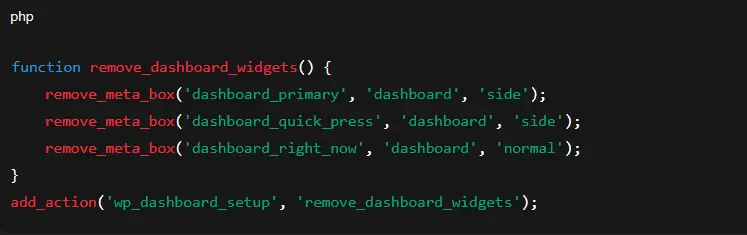
Step 8: Disable Unused Dashboard Widgets
Less stuff means less work.
WordPress and a lot of plugins add widgets to your main dashboard screen, like “At a Glance,” “News,” and “Stats.” These get data from other places, which makes your load time longer.
Uncheck any widgets you don’t need by going to Screen Options in the top right corner of the dashboard. You will notice a quick speed boost, especially if you use Jetpack, WooCommerce, or Google Site Kit.
To get more control, put this in the functions.php file of your theme:
Step 9: Use a lightweight admin theme or plugin for the interface
Lightweight layouts are what modern dashboards need.
A lot of 2025 sites still use the default admin design, but some advanced users switch to custom admin UI plugins to make the interface cleaner and faster.
Try these things:
- Slate Admin Theme: a simple interface that loads faster
- Admin2020 (UiPress) is modular and can be changed to fit your needs. It’s great for agencies.
- Kinsta MU Plugin: made to keep an eye on performance
What’s the difference? Streamlined admin CSS and JS makes the DOM less complicated, which means you have to load fewer files every time you log in.
Step 10: Optimizations at the Host Level (The Big Performance Gains)
When things go wrong, it might not be WordPress; it might be the hosting.
If you’ve done everything above and still see lag, the problem could be with how your host is set up.
You should check or switch to the following:
✅ Host Features to Look for in 2025
- Storage on NVMe SSD
- LiteSpeed server for the web
- Support for Redis and OPcache
- HTTP/3 is on
- PHP version 8.2 or higher
- Each instance has 2GB or more of dedicated RAM
When it comes to backend speed, Hostinger Cloud, Rocket.net, and Cloudways are some of the best.
And if you still have questions, you can always get in touch with Preet Web Vision at
Call us at +63-9633112000 or email us at hello@preetwebvision.com.
to get help moving to a faster server or setting up caching correctly.
Step 11: Make your Admin-Ajax requests as fast as possible
Admin-ajax.php is often the cause of slowness that isn’t obvious.
This file takes care of a lot of admin tasks, like autosaving and checking WooCommerce stock. When plugins use it too much, it can slow down your backend.
To find it:
- Go to Network in Chrome DevTools.
- Sort by admin-ajax.php
- If you keep getting calls every few seconds, that’s your problem.
Make it work
- Turn off live counters or background sync features in analytics plugins.
- Use Query Monitor to find out which plugin keeps calling admin-ajax.
- Use cron based updates instead of real-time analytics.
Step 12: Turn on GZIP Compression and OPcache
Optimizations at the server level that will be important in 2025.
- By storing precompiled PHP code, OPcache cuts CPU usage by 50% to 70%.
- Before sending dashboard assets to the browser, GZIP compresses them.
Most modern hosts have both of these turned on by default, but you should check:
- The phpinfo() file or the hosting dashboard.
- If you’re not sure, get in touch with support.
Bonus: Brotli compression from Cloudflare can make asset delivery even faster.
Step 13: Improve the media files in the dashboard
Your admin library may slow down if you have images and media previews.
The Media Library is very slow because it has big thumbnails and images that aren’t compressed.
Use add ons like:
- Use Imagify or ShortPixel for smart compression.
- Allow Media Replace to switch out big files without having to re-upload them.
- Media Cleaner to get rid of attachments that aren’t being used
Screen Options also lets you choose how many items are shown on each page.
Step 14: Make sure your dashboard is clean and simple.
The best tip for speed? Make it easy.
Don’t add extra admin bars, popups, or visual clutter. Turn off Gutenberg blocks or plugin features that you don’t use very often.
Your WordPress dashboard is like your office:
A clean desk helps you focus better and get things done faster.
Step 15: Final Performance Checklist (2025 Summary)
Let’s go over what you’ve done so far:
- ✅ Updated PHP, WordPress, and plugins
- ✅ More memory space
- ✅ Cleaned up and improved the database
- ✅ Fewer plugins and dashboard widgets
- ✅ Enabled OPcache and Redis
- ✅ Improved admin-ajax
- ✅ Set up caching and compression
- ✅ Tidied up the media and layout
Even for big sites, your WordPress dashboard should now load in less than 2 seconds.
In conclusion, keep your dashboard light, quick, and ready for the future.
A slow dashboard is not just annoying but it also kills productivity without anyone knowing. Your WordPress admin can still work like new in 2025’s tough web environment you just need to optimize it properly and manage it well.
Keep your plugins to a minimum, your hosting to a minimum, and your database clean. And don’t forget: performance isn’t something you do once; it’s something you do all the time.
If you’ve done these things, test your speed again and let us know how it went in the comments below.
Need Help from an Expert?
If your dashboard is still slow after these steps, it could be because of misconfigured servers or plugins that don’t get along.
Our team at Preet Web Vision can help you by auditing and improving the speed of your WordPress site.
Visit: https://preetwebvision.com
Phone: +63-9633112000
Email: hello@preetwebvision.com
We are experts at backend tuning, server caching, and fixing SEO performance to meet the standards of WordPress 2025.
Visit YouTube Channel
For step by step visual tutorials, Visit:
- Preet Tech Ideas (English)
- Preet WebXP (Hindi)
Both channels show real examples and live optimization tests, so you can see how dashboard speeds get better in real time.